Sometimes, explaining something on your screen can be harder than what we thought.
You might be in a meeting, recording a tutorial, or teaching someone online. But pointing with a cursor just isn’t enough. You need to draw, highlight, or mark things clearly.
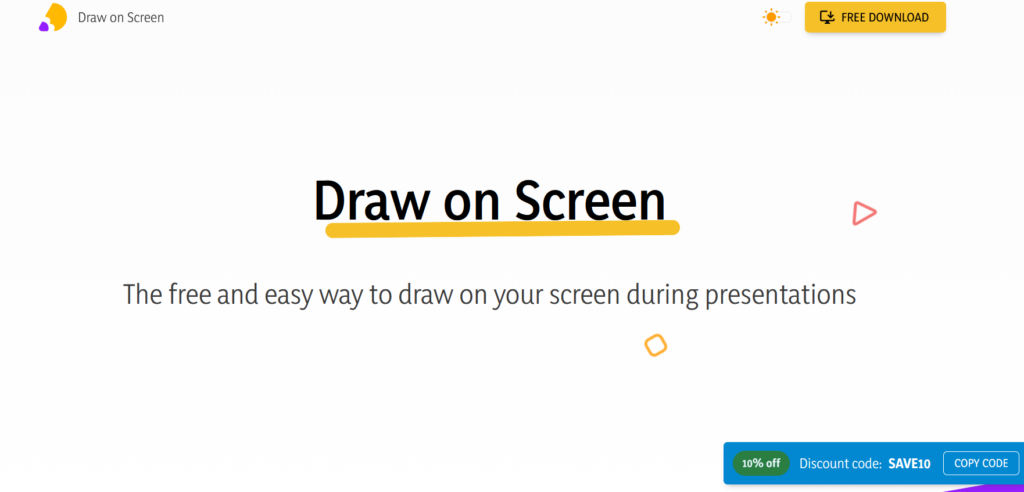
That’s where Draw on Screen comes in.
I spent some time testing this tool to see how useful it actually is in real situations. And honestly, it’s one of those tools that feels simple at first—but becomes surprisingly helpful once you start using it.
In this review, I’ll share my experience, its key features, and whether it’s worth using.
What is Draw on Screen?
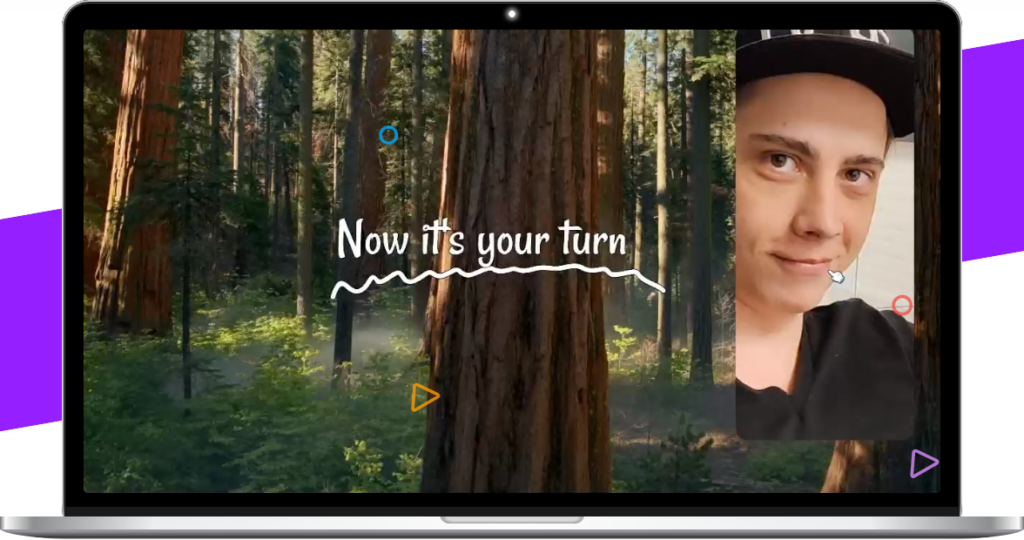
Draw on Screen is a screen annotation tool that lets you draw, write, or highlight directly on your screen—on top of any app.
Whether you’re using a browser, presentation, video, or even a game, you can instantly activate drawing mode and start annotating.
Unlike traditional editing tools, it works in real time. You don’t need to take screenshots first. You draw directly on what you see.
First Impressions
The first thing I noticed is how lightweight the tool feels.
There’s no heavy setup or learning curve. Once installed, you can quickly turn it on and start drawing.
The interface is minimal, which is both a strength and a limitation. It keeps things simple, but you don’t get too many advanced controls.
Still, for most everyday use cases, it works well.
How Draw on Screen Works
Using the tool is straightforward:
1. Enable Drawing Mode
You can activate drawing using a floating button or notification toggle.
Once enabled, you can draw over anything on your screen instantly.
2. Draw or Highlight
You can:
- Draw freehand lines
- Highlight important sections
- Use different colors and brush sizes
This makes it useful for explaining or emphasizing points.
3. Undo or Erase
Mistakes are easy to fix with undo and erase options.
This is helpful when you’re presenting live and need quick corrections.
4. Capture or Record
You can draw while recording your screen or before taking a screenshot.
This makes it ideal for tutorials and guides.
Key Features
1. Real-Time Screen Drawing
The biggest advantage is that you can draw directly on your screen without interrupting your workflow.
No switching tools. No exporting files.
2. Works on Any App
You can annotate over:
- Presentations
- Videos
- Websites
- Apps and games
This flexibility makes it useful for many situations.
3. Simple Drawing Tools
The tool includes:
- Multiple colors
- Adjustable brush sizes
- Eraser
- Undo/redo
These basic features are enough for most users.
4. Great for Tutorials & Teaching
If you create content or teach online, this tool is very practical.
You can highlight parts of the screen while explaining, which makes your content easier to follow.
5. Lightweight and Fast
The app doesn’t slow down your system much.
It runs smoothly in the background and activates instantly when needed.
My Honest Experience
After testing Draw on Screen in real situations, I found it especially useful for:
- Explaining things during video calls
- Creating quick tutorial recordings
- Highlighting UI elements for guides
It saves time because you don’t need to edit screenshots later.
However, it’s not perfect.
What I Liked
- Very easy to use
- Works instantly on any screen
- No learning curve
- Helpful for teaching and presentations
- Lightweight and responsive
What Could Be Better
- Limited customization options
- Toolbar placement can feel restrictive
Real User Feedback
From user reviews, most people appreciate how simple and useful the tool is for basic tasks like note-taking and highlighting.
However, some users mention:
- Difficulty saving drawings
- Limited UI flexibility
- Occasional performance issues
So while the tool works well, there’s room for improvement.
Who Should Use Draw on Screen?
This tool is perfect for:
- Teachers and educators
- Content creators
- YouTubers and tutorial makers
- Remote workers
- Students
If your work involves explaining things visually, you’ll find it very useful.
Who Should Avoid It?
You may not need this tool if:
- You require advanced graphic design features
- You prefer full editing software
- You need collaboration tools
It’s built for simplicity, not complexity.
Final Verdict
Draw on Screen does exactly what it promises and that’s its biggest strength.
It’s not trying to be a full design tool. Instead, it focuses on one job: helping you explain things visually, quickly and clearly.
And for that purpose, it works really well.
⭐ Rating: 4.4 / 5
- Ease of Use: ⭐⭐⭐⭐⭐
- Features: ⭐⭐⭐⭐☆
- Performance: ⭐⭐⭐⭐☆
- Value: ⭐⭐⭐⭐☆

